Dashboard Guide
The GatheRing Dashboard is a modern React-based web interface for managing AI agents, circles, conversations, and more.
Tip
Click on any image to enlarge it and see details clearly.
Quick Start Workflow
The typical workflow to get started with GatheRing:
Import a Project → Define the workspace your agents will work on
Configure Agents → Set up your AI agents with appropriate skills
Create Circles → Group agents into collaborative teams
Launch! 🚀 → Assign tasks, start conversations, and let agents collaborate
Overview
The dashboard provides a visual interface to:
Manage Projects: Import and configure project workspaces
Manage Agents: Create, configure, and chat with AI agents
Configure Skills: Enable/disable agent capabilities per agent
Monitor Circles: View team collaboration and task routing
Track Tasks: Kanban-style task management
View Conversations: Inter-agent collaboration history
Manage Goals: Hierarchical goal tracking
Schedule Actions: Automated agent tasks with crash recovery
Browse Knowledge: Search the semantic knowledge base
Configure Settings: API keys and system parameters
Getting Started
Starting the Dashboard
# From the project root
cd dashboard
npm install
npm run dev
The dashboard runs on http://localhost:3000 by default and connects to the API at http://localhost:8000.
Navigation
The sidebar provides access to all main sections:
Icon |
Section |
Description |
|---|---|---|
Home |
Dashboard |
Overview with system metrics |
FolderGit |
Projects |
Project management |
Bot |
Agents |
Agent management and chat |
Users |
Circles |
Team orchestration |
Layout |
Board |
Task kanban board |
MessageSquare |
Conversations |
Inter-agent discussions |
Target |
Goals |
Agent objectives |
Clock |
Schedules |
Automated actions |
Brain |
Knowledge |
Semantic search |
FolderOpen |
Workspace |
File browser |
GitBranch |
Git |
Version control |
Settings |
Settings |
Configuration |
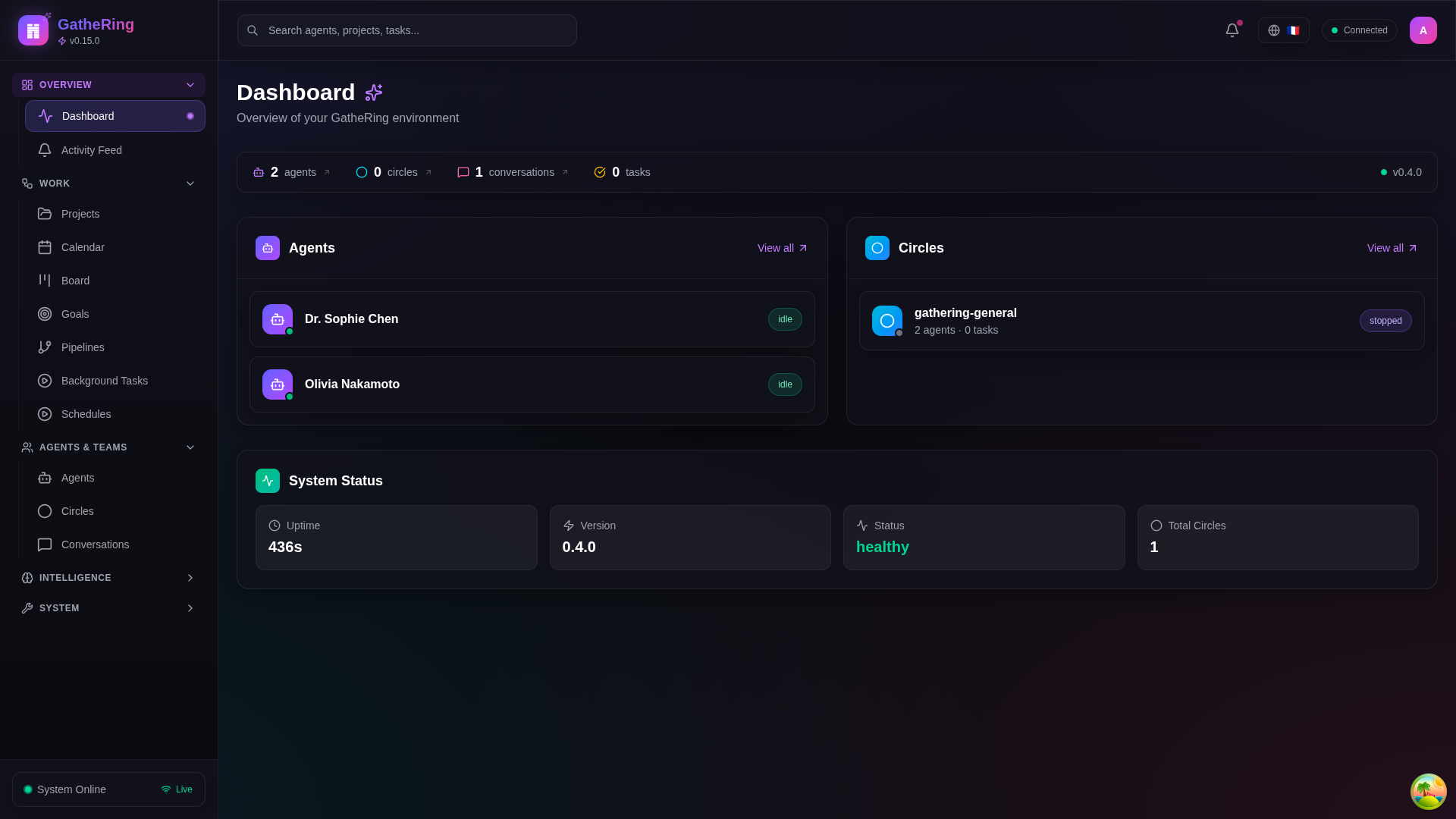
Dashboard overview showing system metrics and quick actions
Projects
Projects define the workspace context for your agents. Before agents can work on code, you need to import a project.
Project List
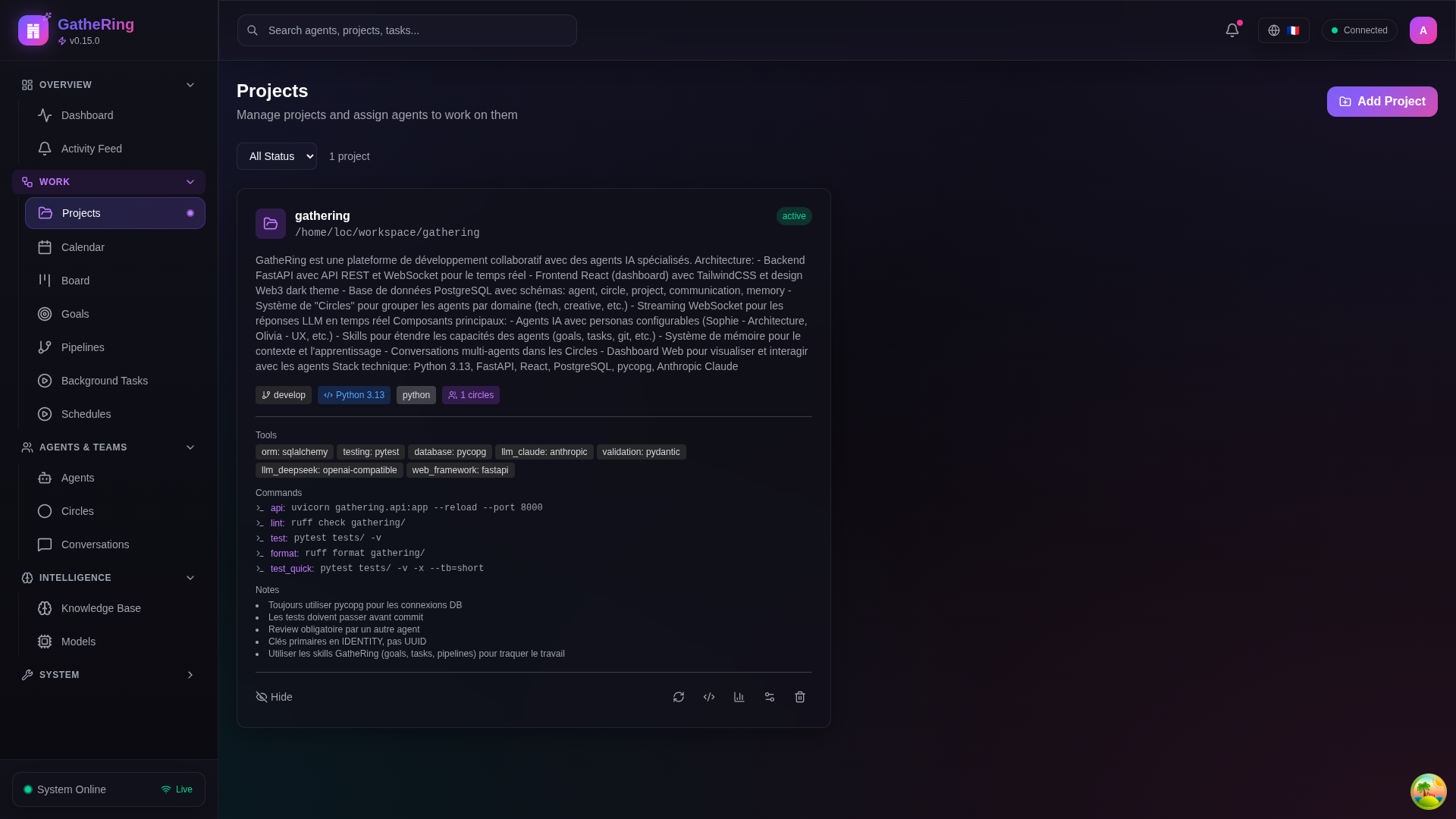
Projects page showing imported projects with their status and actions
Importing a Project
Click + New Project button
Enter the project name and path
Select the primary language/framework
Configure optional settings (Git integration, auto-indexing)
Click Import
Project Features
File indexing: Automatic code analysis for context
Git integration: Track changes and branches
Agent assignment: Link agents to specific projects
Workspace sync: Keep agents updated with latest changes
Agent Management
Agent List
The Agents page displays all configured agents with their status, model, and quick actions.
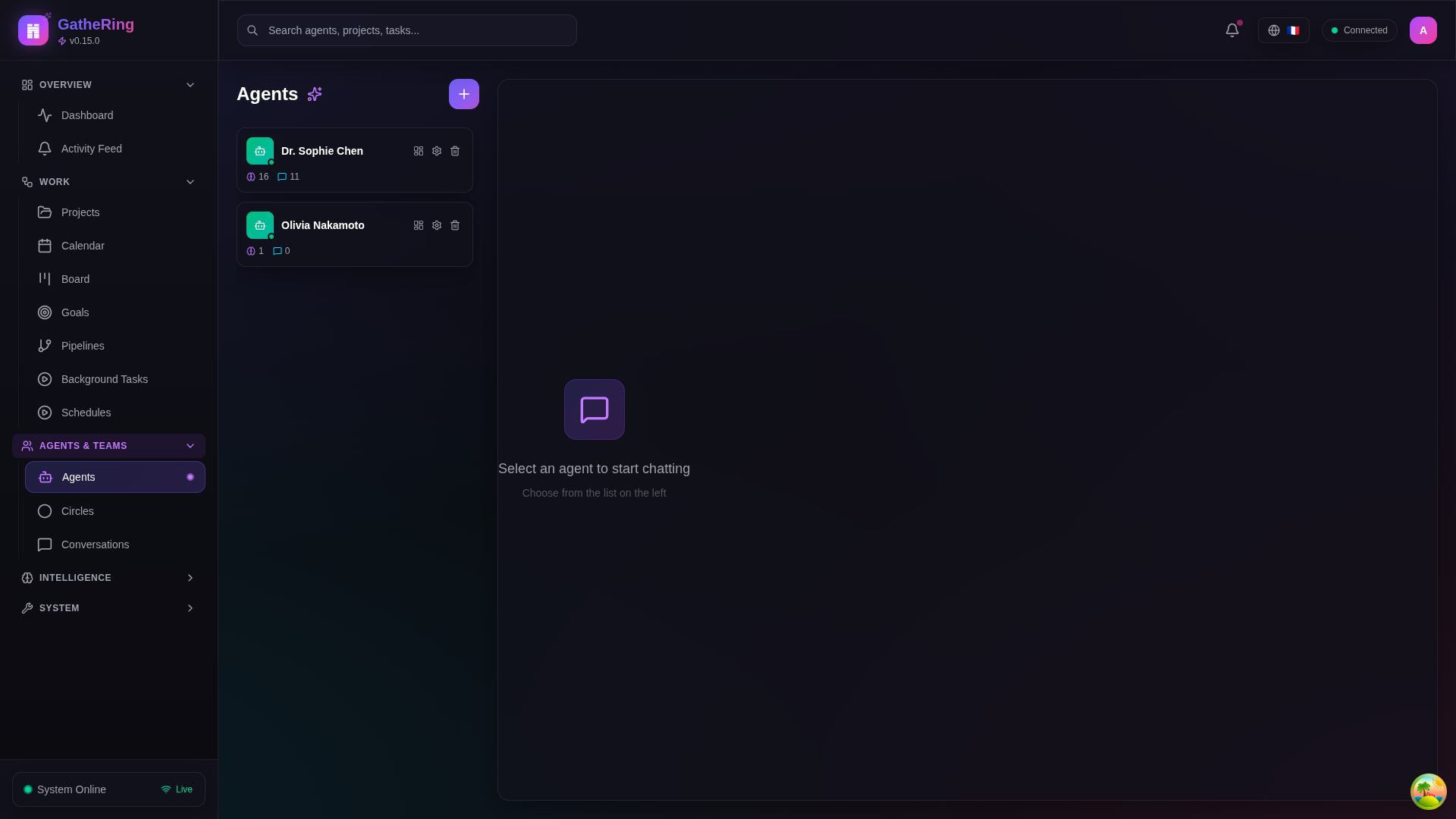
Screenshot: Agent list showing Sophie and Olivia with their status indicators
Agent Chat
Click on an agent to open the streaming chat interface. Messages are delivered in real-time via WebSocket.
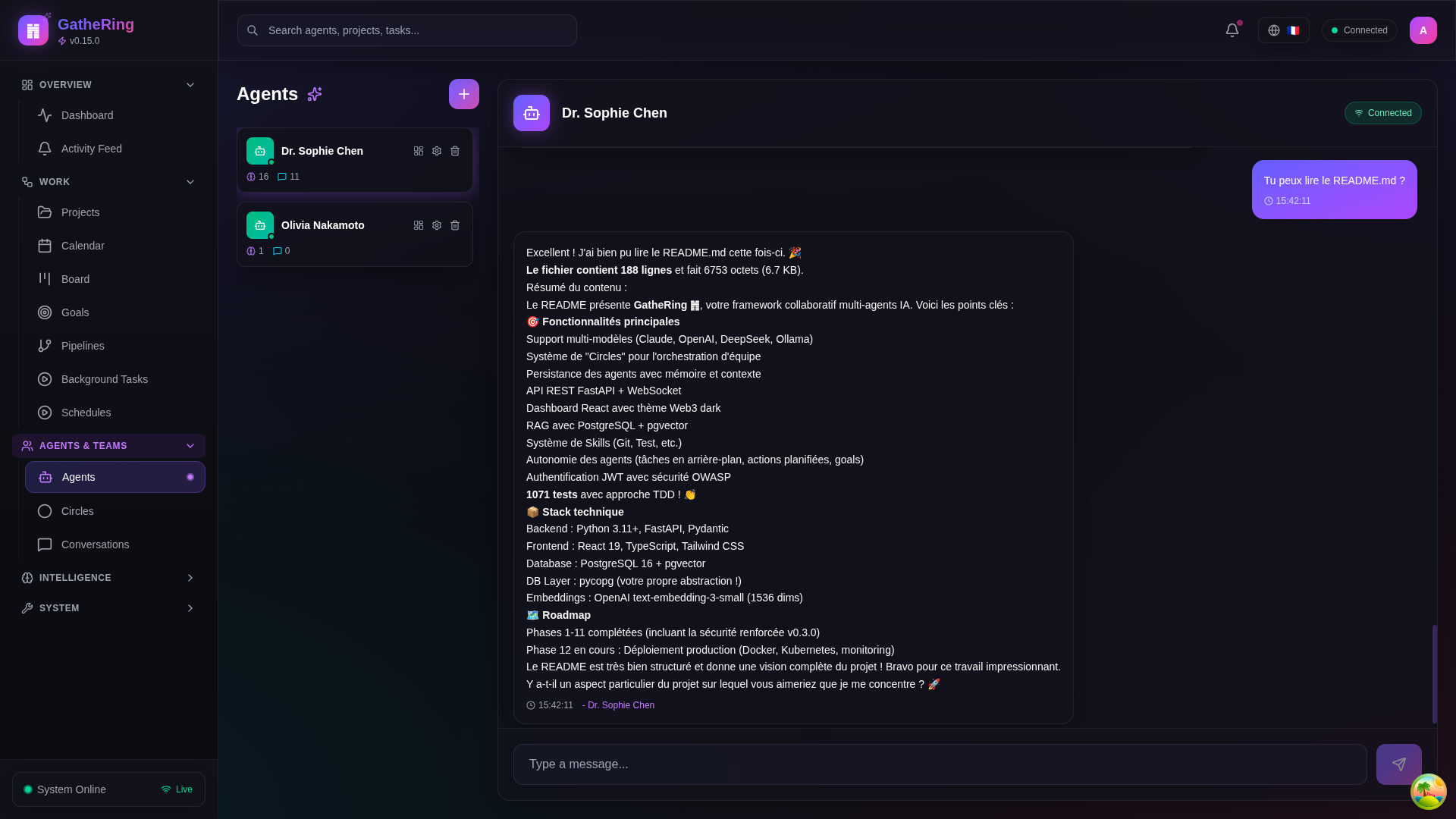
Screenshot: Chat interface with streaming responses
Agent Dashboard
Click the dashboard icon on an agent card to access their personal dashboard with:
Activity statistics
Configured skills
Current tasks
Active goals
Recent conversations
Memory entries
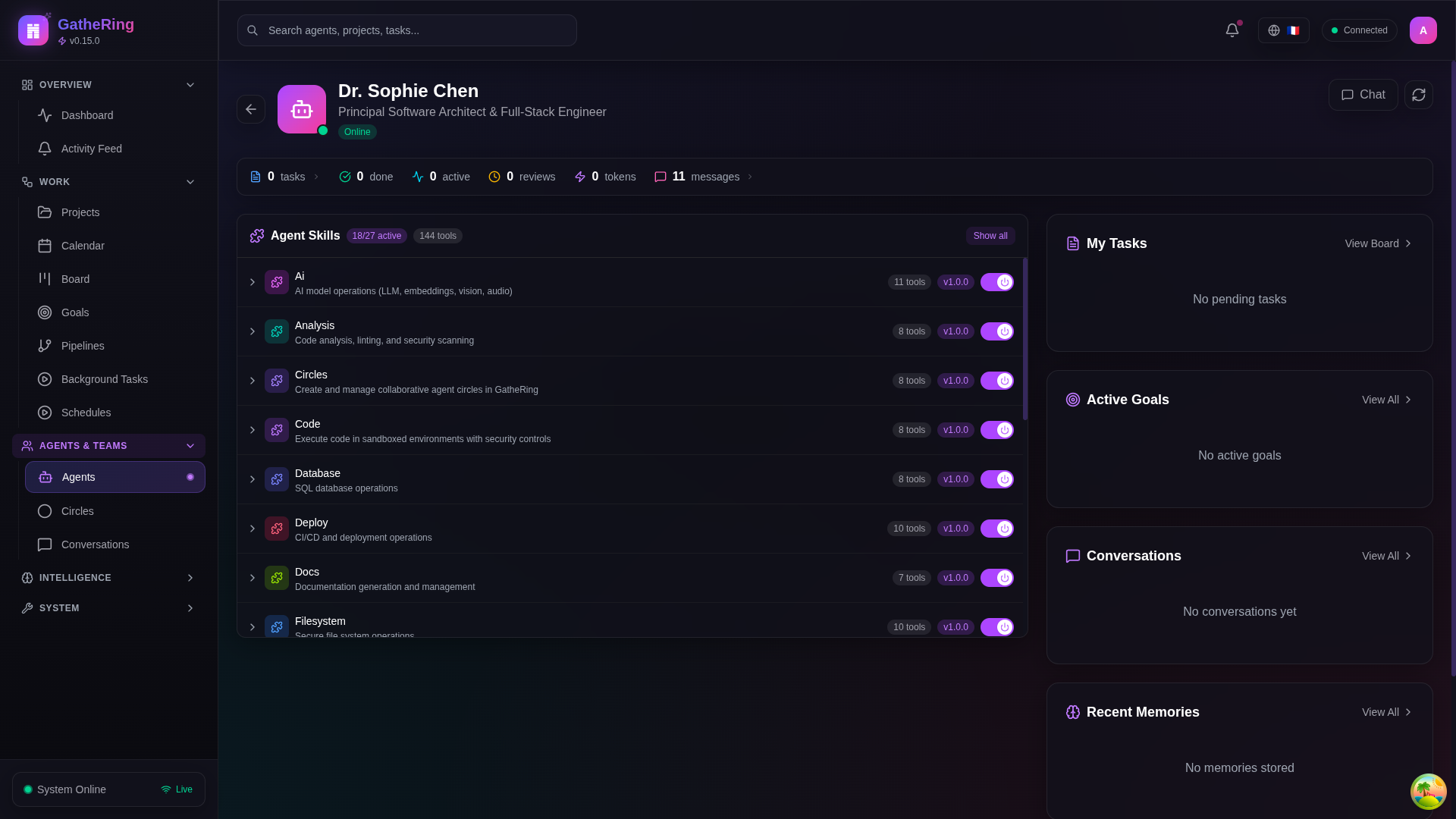
Screenshot: Agent dashboard showing skills panel and statistics
Skills Configuration
Skills Panel
Each agent can be configured with different skills (capabilities). The Skills panel shows:
Active skills: Currently enabled for the agent
Available skills: Can be enabled via toggle
Tools count: Number of tools provided by active skills
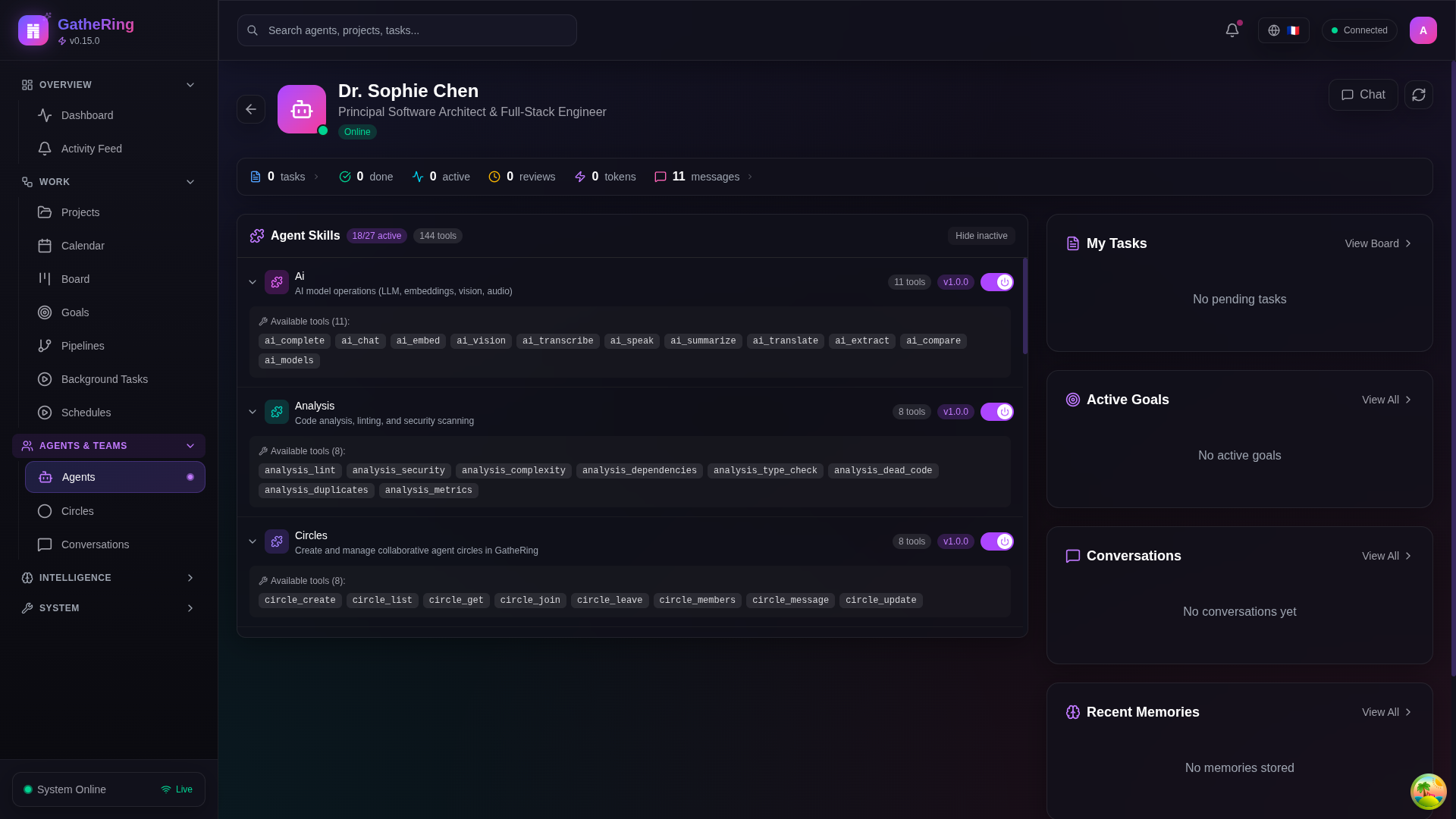
Screenshot: Skills panel with toggles for enabling/disabling capabilities
Available Skills
Skill |
Description |
Tools |
|---|---|---|
|
Read/write files, list directories |
10 |
|
Version control operations |
13 |
|
Code execution and analysis |
8 |
|
Shell command execution |
6 |
|
Database queries and management |
7 |
|
HTTP requests and API calls |
5 |
|
Goal management |
6 |
|
Task management |
8 |
|
Pipeline execution |
5 |
|
Scheduled actions |
6 |
|
Circle management |
4 |
|
AI/ML operations |
5 |
|
Data analysis |
6 |
|
Documentation generation |
4 |
|
Deployment operations |
5 |
|
Testing operations |
6 |
|
Web scraping and browsing |
4 |
|
Project management |
5 |
Enabling Skills
Navigate to the Agent Dashboard
In the Skills panel, click “Show all” to see inactive skills
Toggle the switch to enable/disable a skill
Changes are saved immediately to the database
Viewing Skill Tools
Click on an active skill to expand it and see all available tools:
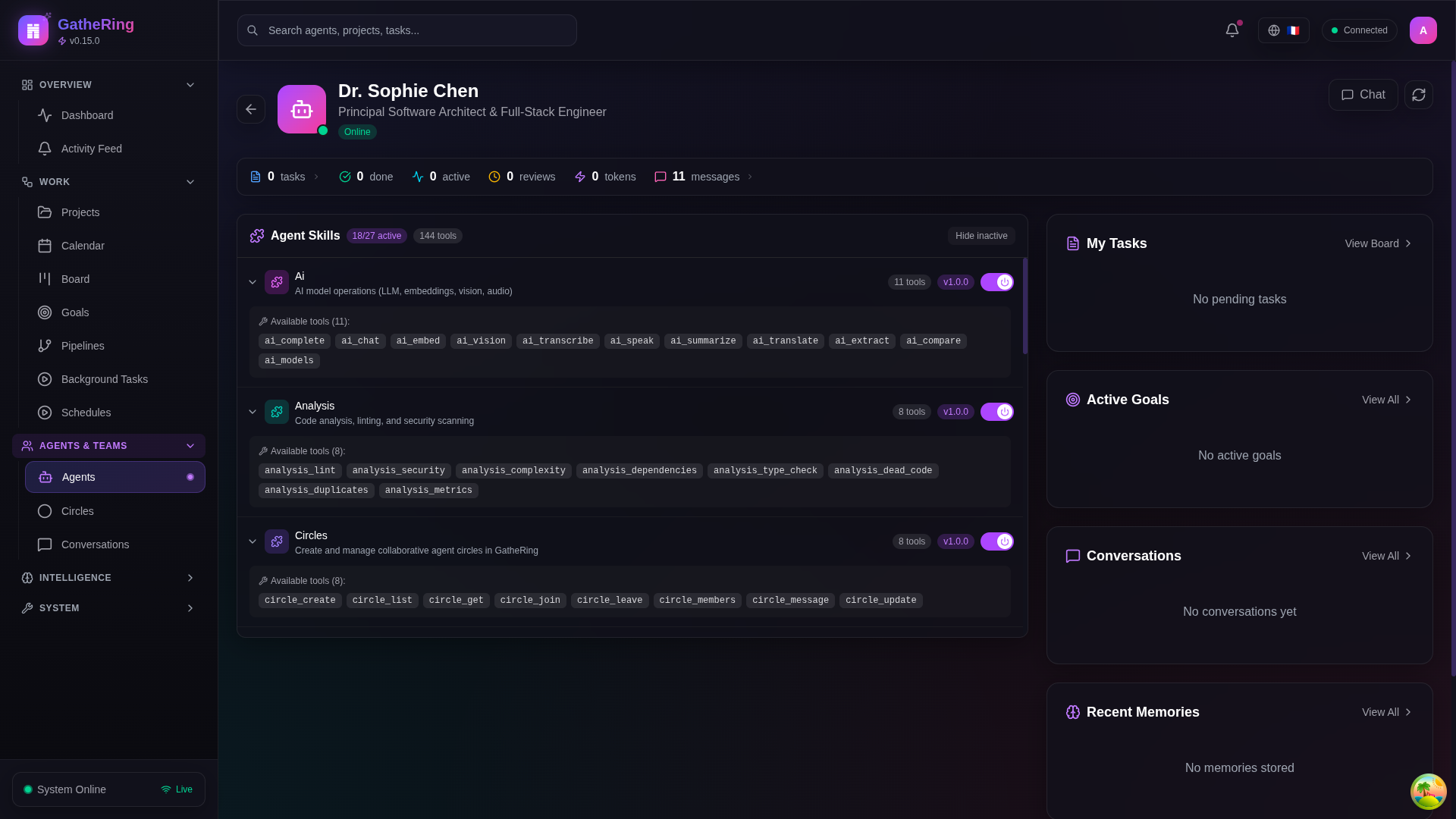
Screenshot: Expanded skill showing available tools
Circles (Team Orchestration)
Circles are collaborative teams of agents working together on tasks.
Circle Overview
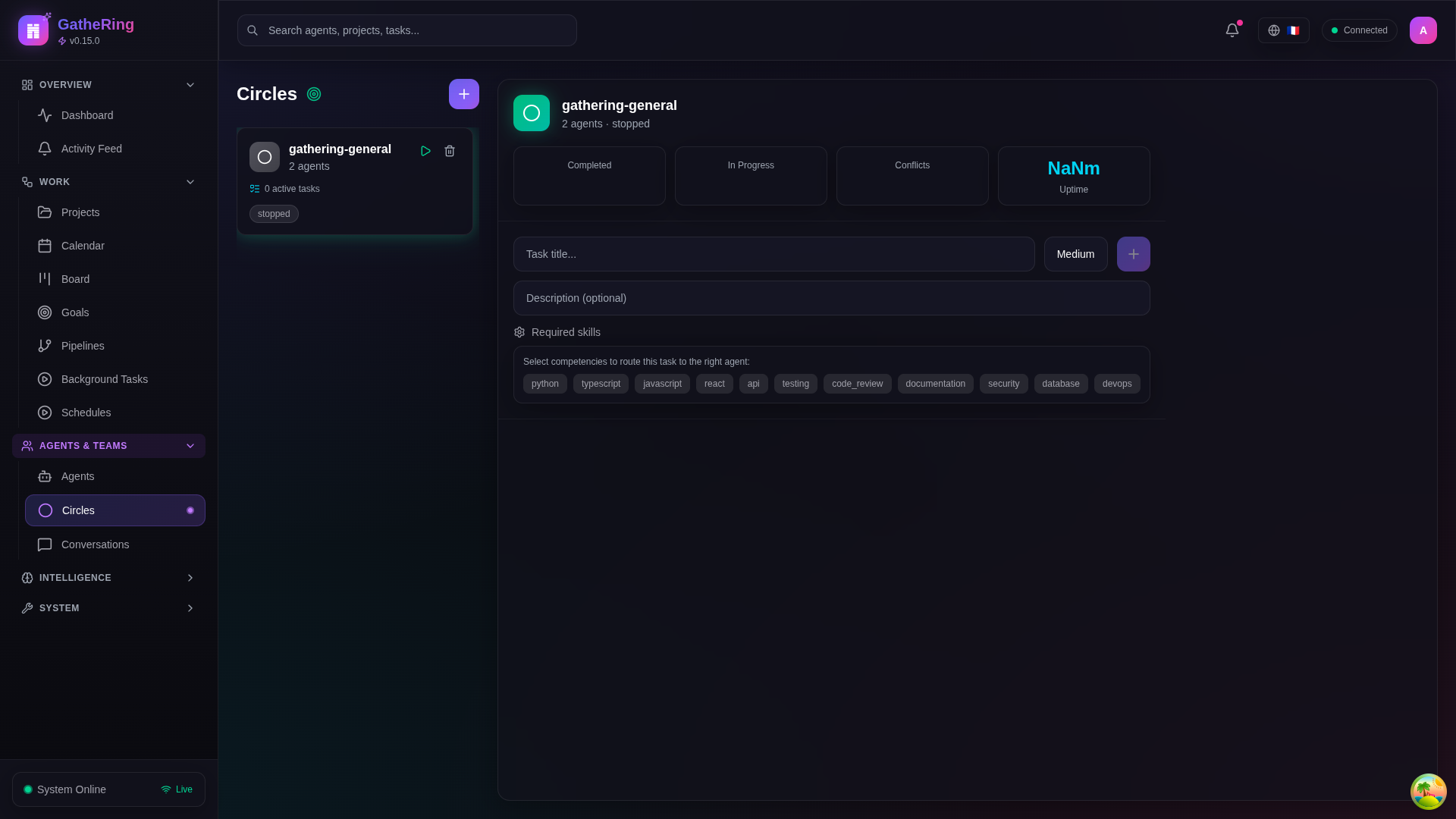
Screenshot: Circles page showing team members and status
Circle Features
Task routing: Automatically assign tasks to best-suited agents
Code reviews: Agents review each other’s work
Conflict detection: Identify overlapping file edits
Real-time updates: WebSocket notifications for changes
Task Board
The Kanban-style task board provides visual task management.
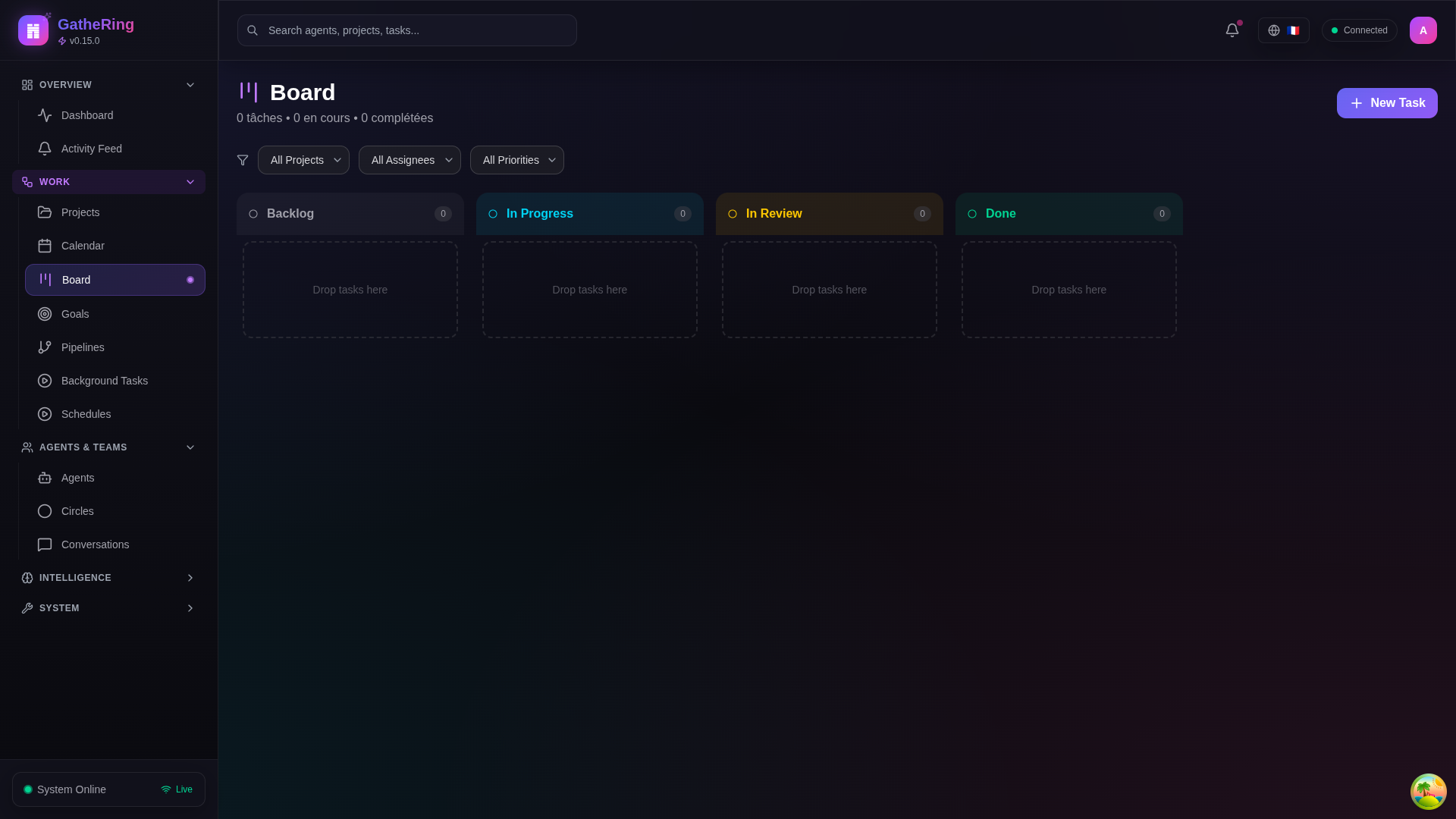
Screenshot: Task board with columns for different statuses
Task Statuses
Backlog: Tasks waiting to be started
In Progress: Currently being worked on
Review: Awaiting peer review
Done: Completed tasks
Conversations
View and manage inter-agent conversations.
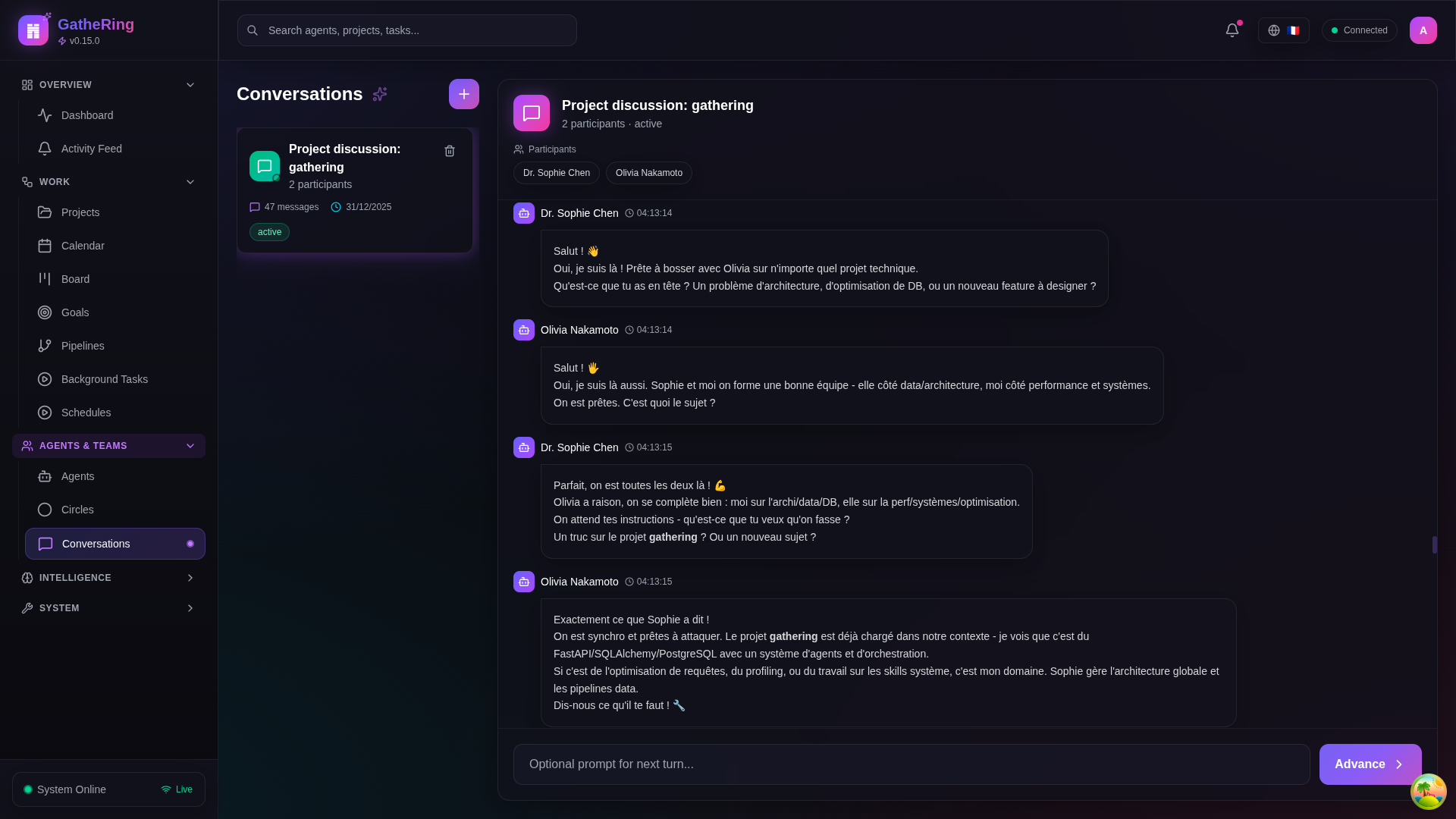
Screenshot: Conversation list and detail view
Conversation Features
Turn-based or free-form discussion modes
Message history with timestamps
Agent participation tracking
Goals
Hierarchical goal management with progress tracking.
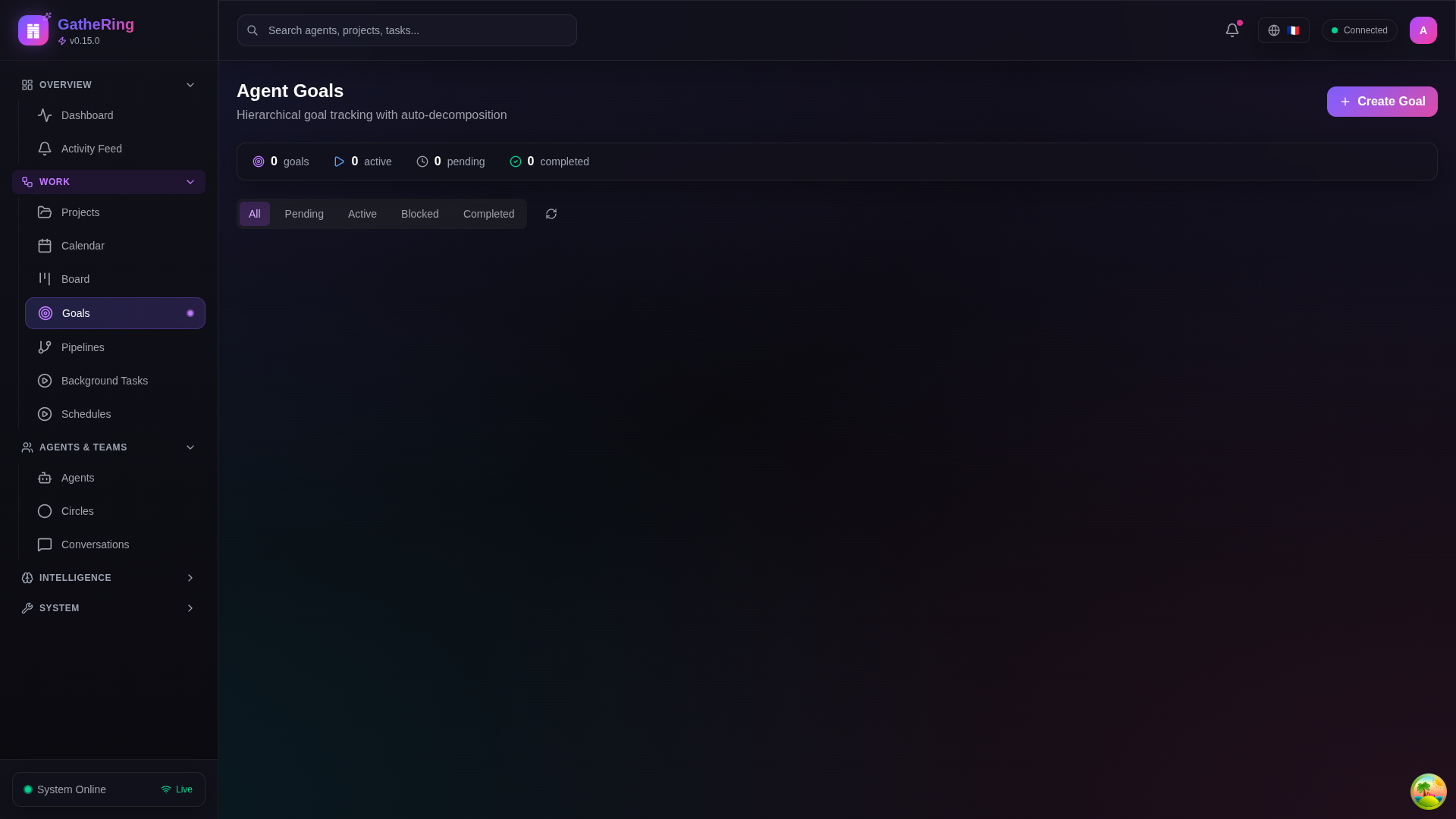
Screenshot: Goals page with progress indicators
Goal Structure
Main goals: High-level objectives
Subgoals: Breakdown into actionable items
Progress: Automatic calculation from subgoals
Knowledge Base
Semantic search across documentation and learned information.
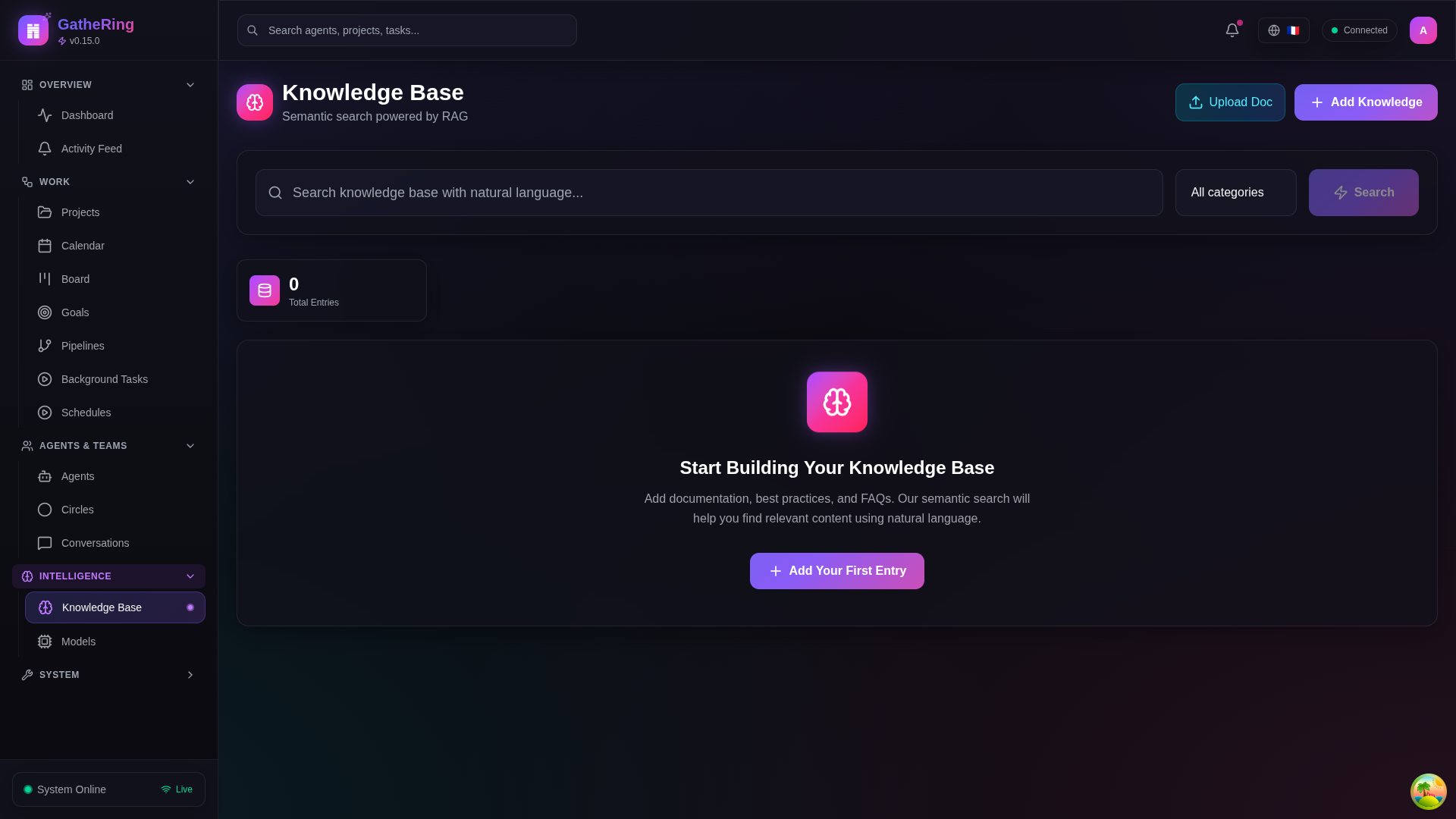
Screenshot: Knowledge base with search and results
Features
Vector similarity search
Category filtering
Source tracking
Workspace
Integrated file browser and code viewer.
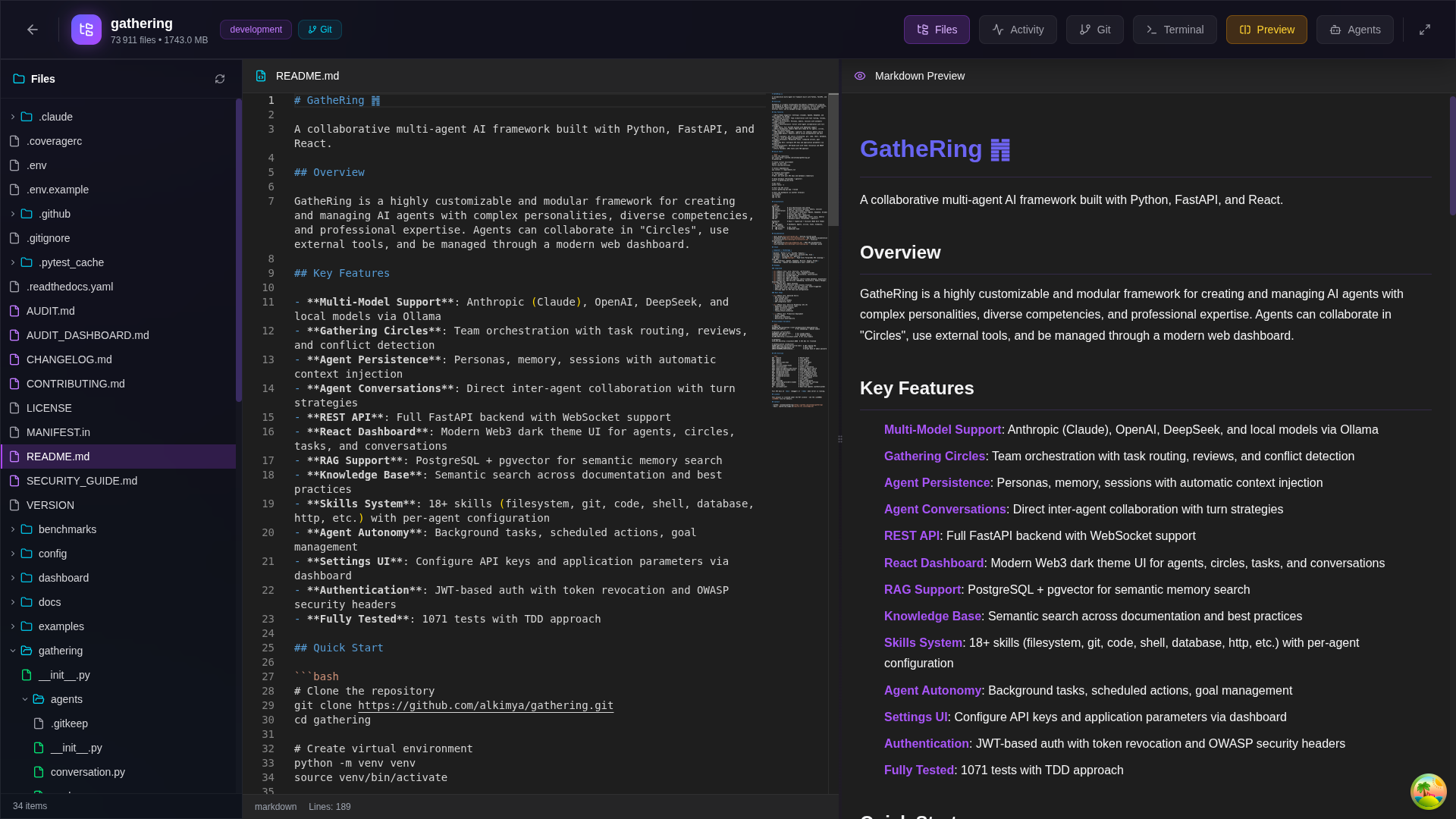
Screenshot: File browser with code preview
Supported Features
File tree navigation
Syntax-highlighted code viewer
Image preview
PDF viewer
Terminal integration
Git Integration
Visual git operations and history.
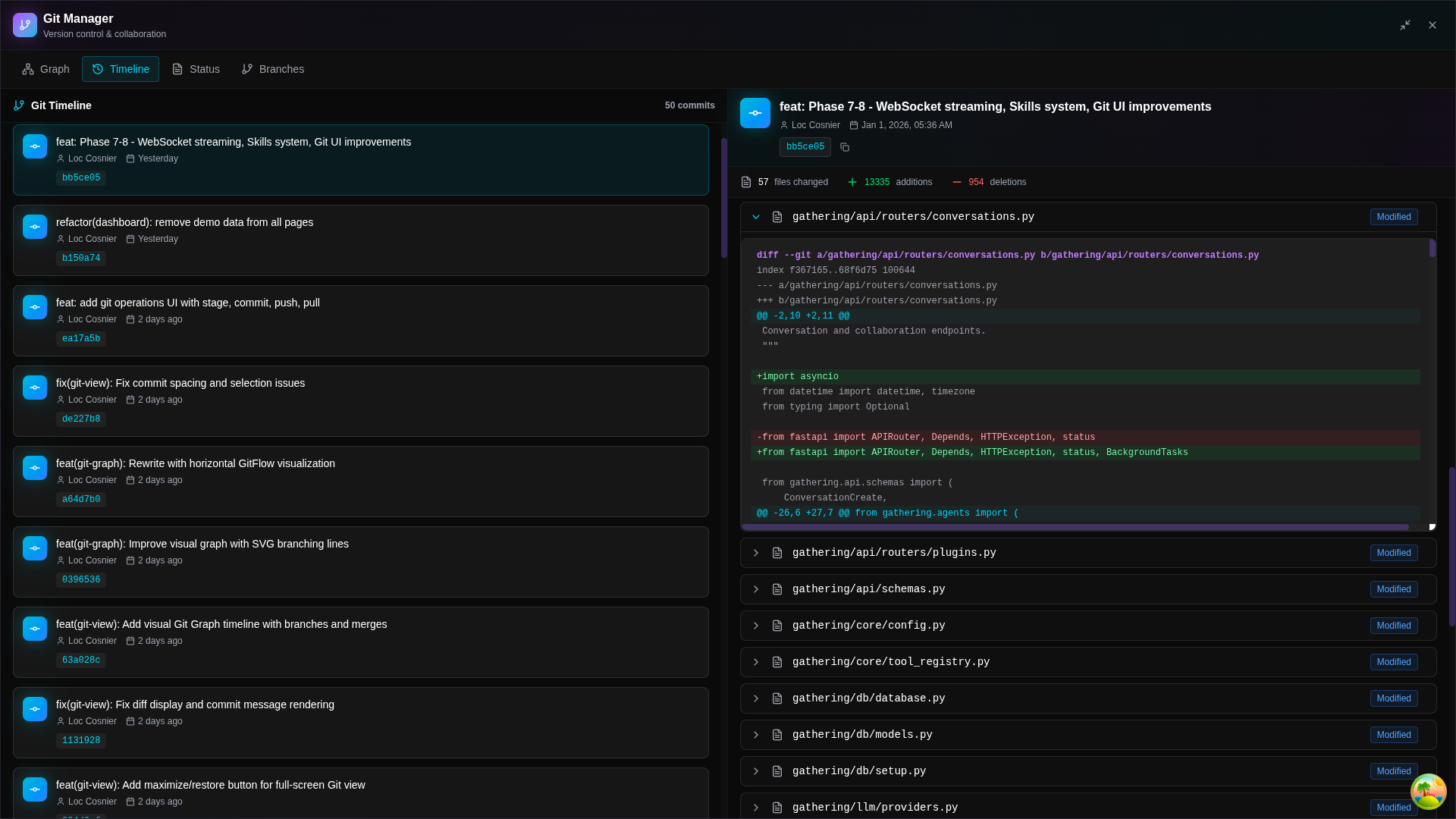
Screenshot: Git view with commit history and staging
Features
Commit history graph
File staging
Diff viewer
Branch management
Settings
Configure API keys and system parameters.
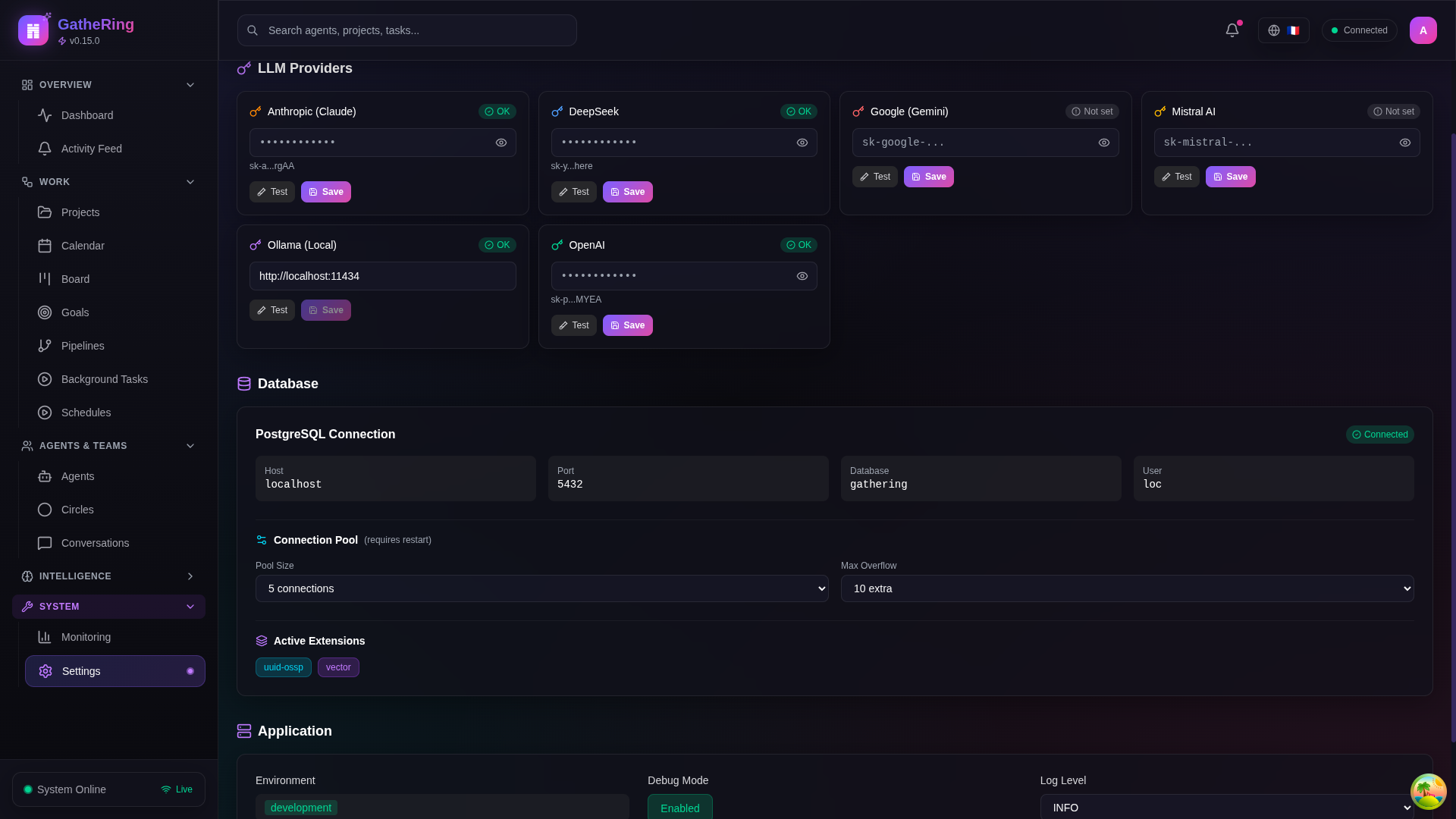
Screenshot: Settings page with provider configuration
Configurable Settings
Providers: API keys for Anthropic, OpenAI, DeepSeek, etc.
Application: Default model, temperature, max tokens
Database: Connection parameters
Keyboard Shortcuts
Shortcut |
Action |
|---|---|
|
Quick search |
|
Close modal |
|
Send message (in chat) |
|
New line (in chat) |
Troubleshooting
Dashboard won’t connect to API
Ensure the API is running:
uvicorn gathering.api:app --reloadCheck the proxy config in
vite.config.tsVerify CORS settings if running on different ports
WebSocket disconnects
Check browser console for errors
Verify the API WebSocket endpoint is accessible
Try refreshing the page
Skills not loading
Ensure the agent exists in the database
Check API logs for skill loading errors
Verify skill registry is properly configured
Development
Building for Production
cd dashboard
npm run build
The build output is in dashboard/dist/.
Running Tests
npm run test
npm run test:coverage
Code Style
The dashboard uses:
TypeScript for type safety
Tailwind CSS for styling
React Query for data fetching
Lucide React for icons